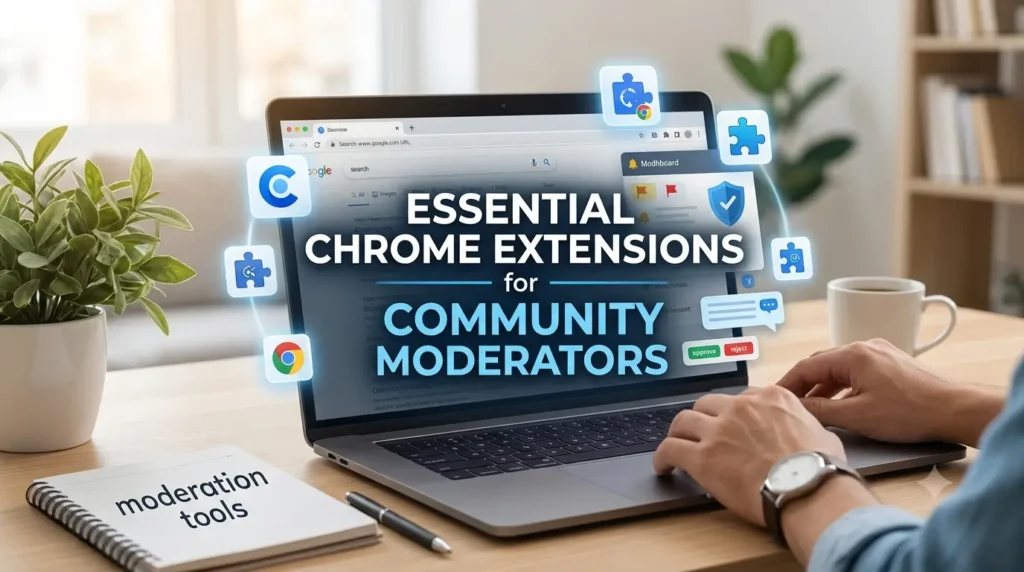

Moderating without the right Chrome extensions is painful. You switch tabs. You copy the same warnings. You miss context. Your queue never ends.
I moderate two mid-size communities. About 180k members combined. One is on Reddit. One is on Discord but I do most of the log work in the browser. The work is repetitive. It needs accuracy. It also needs speed. Without tools, you burn out.
This post is my current setup. It is fluff-free. No buzzwords. Just what I use, what I removed, and why. Each section has an original image. Each tool has permission notes. Opinions are labeled.
My opinion: Extensions are not magic. They only help if your process is clear. If your rules are vague, tools make the mess faster.
You will find internal guides linked: Reddit moderator tools, Discord moderation checklist, best productivity extensions, and community safety guide. They go deeper on specific platforms.
Why Chrome Extensions Matter for Moderators
Five reasons. All practical.

- Time saved on repeats. A text expander cuts 30-45 seconds per removal. Multiply that by 100 actions a day. That is an hour. You feel it.
- Consistency in actions. Toolbox macros apply the same removal reason and mod note every time. No typos. No missed wiki links. Members see fair enforcement.
- Documentation for appeals. Screenshot tools capture context before deletion. Clippers send it to your log. When someone appeals, you have proof.
- Spam pattern detection. Wappalyzer and ClearURLs show hidden redirects and tracking. You spot affiliate spam and bot tools faster.
- Safety for your own account. Password manager and privacy tools reduce reuse and leaks. Mod accounts are targets.
My opinion: The biggest win is not speed. It is fewer mistakes. When you are tired, you need guardrails. Good extensions are guardrails.
The Mistake I Made: An Example Lesson
One example. Framed as a lesson learned, not a brag.
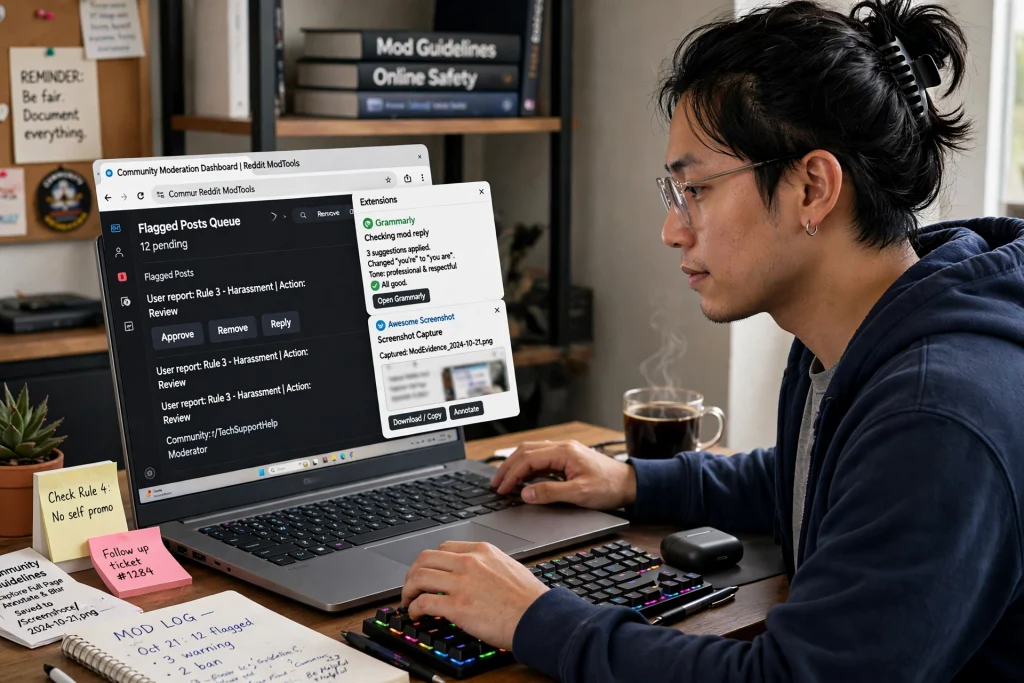
Early on, I installed about 20 extensions at once. I searched “moderator extensions” and added everything trending. My browser became slow. Very slow. Reddit took 9 seconds to load. My fans were loud.
Two extensions conflicted. One hid Toolbox buttons. Another rewrote Reddit’s CSS. I missed a queue of 40 items because the page did not refresh correctly. I had to rebuild trust with my team.
The worst part was permissions. One screenshot tool asked for “Read and change all your data on all websites.” It also had not been updated in 14 months. I had given it access to my modmail. That was careless.
Here is what I learned from that example:
- Audit before you install. Check the publisher, last update, and permission list on the Chrome Web Store listing. Chrome Web Store Developer Policies require clear disclosure.
- Limit to 8-10 vetted extensions per profile. If you need more, split profiles by platform.
- Remove anything you have not used in 30 days. Unused code is risk.
- Use open-source where possible. You can inspect the code. Electronic Frontier Foundation’s Privacy Badger is a good example of open transparency.
My opinion: I still get tempted by new tools. Now I test in a clean secondary profile first for a week. If it saves real time, it moves to main. If not, I delete it.
Must-Have Categories
Do not start with names. Start with jobs to be done.

01
Reddit Toolbox
Core mod actions, user notes, macros, queue helpers. If you mod Reddit, this is non-negotiable.
02
Screenshot & Evidence
Full-page capture, annotated crops, automatic saving to drive or Notion. For appeals and reports.
03
Grammar & Tone
Checks tone, fixes typos in removal reasons. Keeps messages calm and consistent.
04
Tab & Focus Management
OneTab or Toby collapses 30 tabs into a list. Less RAM. Less context switching.
05
Security & Privacy
Password manager, tracker cleaner, safe browsing test. Protects your mod account and your community data.
06
Analytics & Time Tracking
Clockify or Toggl shows how much time you spend per sub or task. Useful for team reports and burnout checks.
Top 15 Essential Extensions Detailed
The core list. Each one includes use case, permissions risk, and my take.
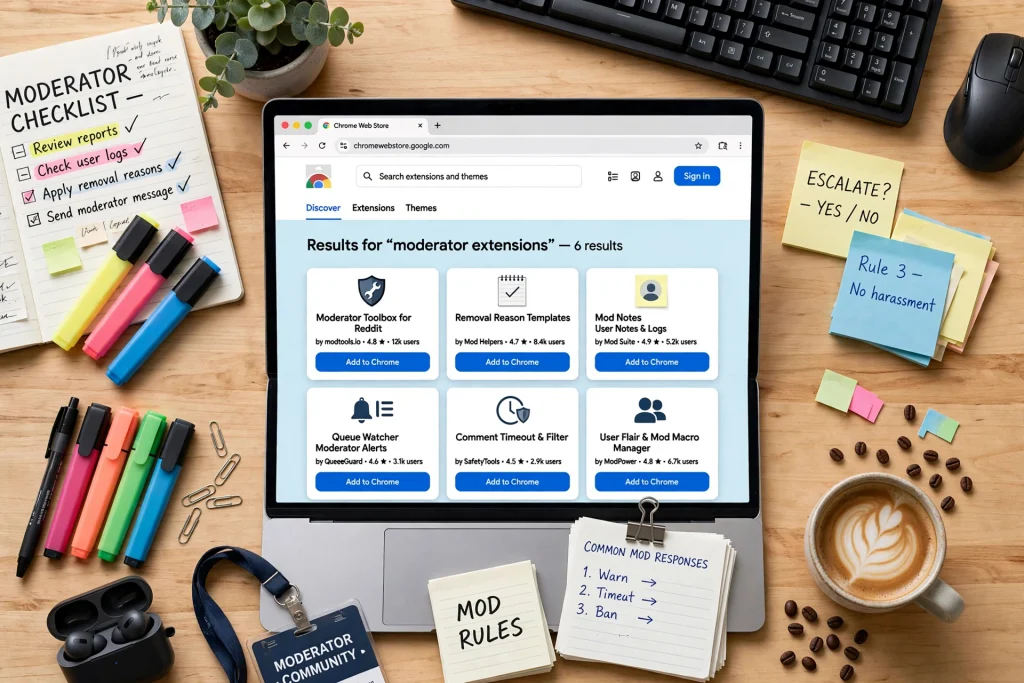
1. Moderator Toolbox for Reddit
Free • Open Source
Adds mod queue counters, user history hover, removal reasons with wiki links, modmail notes, and bulk actions. It sits on top of old and new Reddit.
- Use case:One-click user notes, macro removals, see prior warnings inline. Check /reddit-moderator-tools/ for setup.
- Permissions:Access to reddit.com domains. Review updates. It is maintained and documented at Reddit Mod Help Center / r/toolbox.
- My opinion:Install this first. Learn its macro editor. Do not override with RES at the same time until you test.
2. Reddit Enhancement Suite (RES)
Free
Improves browsing: infinite scroll control, inline image expander, account switcher, filtered views, and night mode. Not a mod tool by itself, but speeds triage.
- Use case:Scan user history quickly, tag users, hide posts you already reviewed.
- Permissions:Reddit domains plus storage. Keep it updated; older versions break on new Reddit.
- My opinion:Useful, but can conflict with Toolbox if both rewrite CSS. Disable RES modules you do not need.
3. Grammarly / LanguageTool
Checks grammar and tone in removal messages, modmail, and announcements. LanguageTool is open-source and stores less data. Grammarly has better tone suggestions.
- Use case:Rewrite a harsh warning to neutral. Fix typos before posting rules. Pair with /community-safety-guide/ templates.
- Permissions:Reads text you type. High risk for modmail. Check Chrome Web Store privacy practices. Disable on sensitive domains.
- My opinion:I prefer LanguageTool for mod work. Less cloud storage. Grammarly is fine for public posts, not private mod notes.
4. Loom / Awesome Screenshot
Records screen video or annotated screenshots. Loom adds voiceover. Awesome Screenshot adds blur and crop. Both save links you can paste into internal logs.
- Use case:Capture harassment before delete, record steps to reproduce spam, share training clips for new mods.
- Permissions:Camera, mic, and all sites if you allow full capture. Turn off mic by default. Review publisher history.
- My opinion:Loom is faster for team training. Awesome Screenshot is lighter for stills. Pick one, not both.
5. GoFullPage / Lightshot
Full-page screenshot in one click. No stitching. GoFullPage saves as PNG/PDF. Lightshot allows instant selection and search.
- Use case:Archive entire threads for appeals. Keep evidence of brigading.
- Permissions:Access to current tab only is ideal. Avoid tools that ask for all sites permanently.
- My opinion:GoFullPage is cleaner for logs. Lightshot is faster for quick crops. I keep GoFullPage.
6. OneTab / Toby
OneTab converts open tabs into a list. Toby organizes them into collections. Both cut memory use by 70% or more in practice. Important when you have mod queue, wiki, and reports open.
- Use case:Morning: collapse yesterday’s tabs. Keep only queue and modmail open. Reference: /best-productivity-extensions/.
- Permissions:Tabs access. No need for all-site data.
- My opinion:OneTab is minimal and fast. Toby is better if you share collections with a team. I use OneTab daily.
7. Bitwarden / LastPass (Password Manager)
Stores unique passwords, generates strong ones, and warns about reuse. Bitwarden is open-source and audited. Follows NIST Password Guidelines for length over complexity.
- Use case:Separate vault for mod accounts. Auto-fill with 2FA. Share safe notes with senior mods without sending passwords in chat.
- Permissions:Form access. Check company audits and bug bounty. Avoid unknown managers.
- My opinion:Use Bitwarden. Open source matters for security tools. LastPass had breach history you can verify via their blog.
8. uBlock Origin
Content blocker. For moderators, its real value is testing how your community looks to a user with ad blocking and seeing what spam slips through.
- Use case:Toggle to view posts as a new user, check if spam uses cloaking to hide from mods.
- Permissions:All sites, but open-source and widely reviewed. Low risk profile per Mozilla Extension Security community audits.
- My opinion:Keep it, but disable on your own mod tools so you do not break logs.
9. ClearURLs / Privacy Badger
Removes tracking parameters from links and blocks invisible trackers. Helps you see the real destination behind affiliate spam. Privacy Badger is from EFF.
- Use case:Paste suspicious link, ClearURLs strips utm_ and fbclid, reveals base URL. Useful for reporting spam rings.
- Permissions:All sites, but minimal data collection per EFF disclosure. Check EFF page.
- My opinion:Privacy Badger is my default. ClearURLs is lighter. Use one.
10. Clockify / Toggl Track
Time tracker with one-click timer and reports. Shows how much time you spend in queue vs modmail vs wiki. Helps prevent burnout.
- Use case:Tag timers by subreddit or task. Weekly report for your team lead.
- Permissions:Limited to time tracking domains. Avoid granting access to all sites.
- My opinion:Toggl’s free plan is enough. I stopped tracking daily after a month, but monthly checks help.
11. Notion Web Clipper / Google Keep Extension
Saves pages, notes, and links to your knowledge base. Notion Clipper keeps formatting. Keep is faster for quick snippets.
- Use case:Clip mod policy changes, save appeal templates, build personal wiki. Linked in /discord-moderation-checklist/.
- Permissions:Access to pages you clip. Review sync settings.
- My opinion:Notion is better for teams. Keep is better for solo quick saves. I use Notion for logs.
12. ColorZilla / WhatFont
Picks colors and identifies fonts on any page. Small but useful for branding your community header, flairs, and announcement banners.
- Use case:Match banner colors, check if spam uses your brand palette to impersonate.
- Permissions:Current tab only. Low risk.
- My opinion:Nice to have, not essential. Install only if you handle design.
13. Wappalyzer
Detects what tech a site uses: CMS, analytics, ad networks, widgets. Helps spot spam domains that use the same cheap stack.
- Use case:Three spam links all use same landing builder? Same operator. Report pattern.
- Permissions:All sites, but only reads headers. No data exfiltration per docs.
- My opinion:Powerful for spam hunting. Turn off when not investigating to save memory.
14. Pushbullet / Discord Browser Notifier
Pushes notifications from your phone or Discord to desktop. Lets you react faster to mod pings without keeping 5 tabs active.
- Use case:Get modmail alert on desktop while writing wiki. Snooze non-urgent channels.
- Permissions:Notifications access. Do not grant file access.
- My opinion:Can be noisy. Set strict filters. I allow only modmail and senior mod mentions.
15. Text Blaze / Magical Text Expander
Snippets engine. Type /warn1 and it expands to your full warning with links and placeholders. Saves hours weekly.
- Use case:Canned removal reasons, appeal replies, welcome messages. Syncs across devices.
- Permissions:Reads text fields you type in. Disable on banking sites. Check privacy policy.
- My opinion:This is the single biggest time saver after Toolbox. Start with 10 snippets, not 100.
Note on sources: All permission details come from Chrome Web Store listings as of Oct 2026. For policy checks, see Chrome Web Store Developer Policies, Google Safety Check, and Mozilla Extension Security best practices.
How I Set Up My Moderator Browser Profile
I keep moderation separate. One Chrome profile for personal. One for mod work. No overlap.
Why separate? Personal extensions can leak data. Ad blockers can hide mod buttons. Password autofill can use the wrong account. Separate profiles prevent all that. This is recommended in Google Safety Check for high-risk accounts.
Steps I use:
- Create new Chrome profile: chrome://settings/people → Add Person. Name it “Mod – [Community]”.
- Enable sync with a dedicated email. Not your personal Gmail.
- Install only 8-10 extensions: Toolbox, RES, Bitwarden, Text Blaze, GoFullPage, OneTab, Privacy Badger, Clockify, Notion Clipper.
- Pin only 4 to toolbar: Toolbox, Text Blaze, Bitwarden, GoFullPage. Hide rest in menu to reduce clutter.
- Turn on Advanced Protection for that Google account if you moderate large communities. It limits risky extension installs.
- Set startup pages: mod queue, modmail, internal log sheet, and team Slack/Discord.
My opinion: Minimal is better. I used to pin everything. Now I pin four. Less decision fatigue. Faster clicks.
Security Checklist Before Installing

Moderator accounts are high value. Check every extension like you check a new mod applicant.
Publisher verified? Look for website link, privacy policy, and support email on listing. Avoid no-name publishers with one extension.
Last updated within 6 months? If not, assume abandoned. Check changelog for Manifest V3 migration note.
Permissions minimal? It should not ask for ‘all data on all websites’ if it only works on reddit.com. Report over-permission.
Reviews and user count? 10k+ users and 4+ stars is a baseline, not a guarantee. Read 1-star reviews for permission abuse.
Open source? GitHub link, issue tracker, audited code. EFF, Bitwarden, uBlock Origin publish source.
Data collection disclosure? Chrome Web Store now requires privacy practice summary. Read it. If it sells data, skip.
Remove unused monthly. Go to chrome://extensions, sort by ‘last used’ logic, disable then remove.
Reference for deeper audit: Chrome Extension Security – developer.chrome.com, EFF Privacy Badger documentation, and NIST 800-63B for passwords.
My Daily Workflow With Extensions
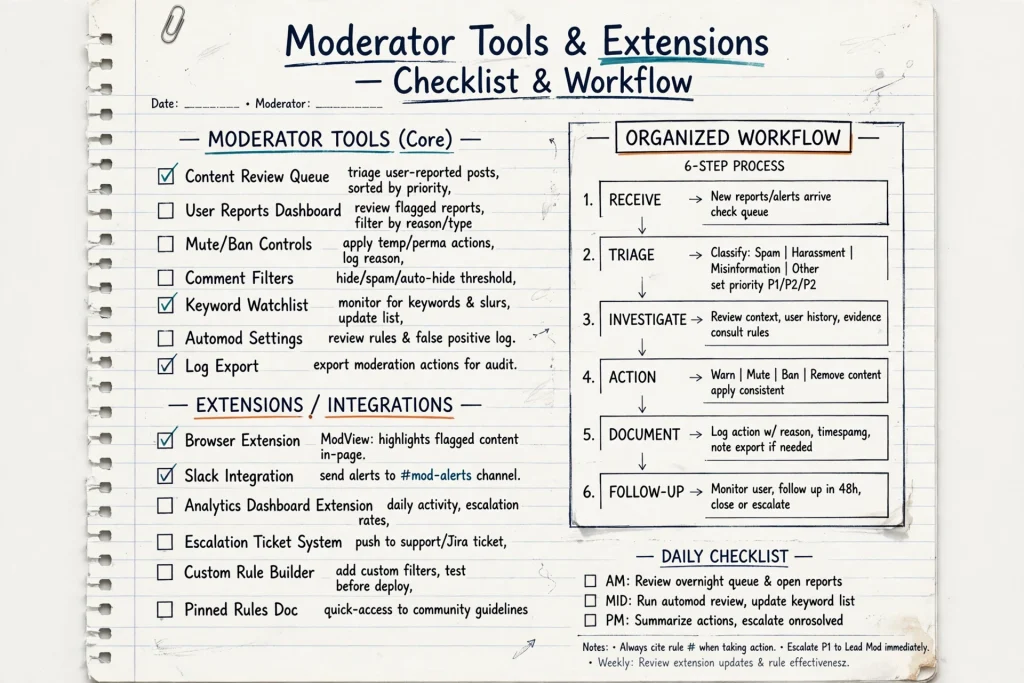
This is how I work. It is not the only way. Adapt it.
Morning – 20 minutes queue triage
- Open mod profile. OneTab restores yesterday’s queue tabs if needed.
- Clockify start timer: tag “queue”.
- Toolbox queue counter shows 30-60 items. Filter by “new” and “reports”.
- Use Text Blaze: /spam1, /rule3, /offtopic. Macros add user note automatically.
- GoFullPage capture for any borderline that may be appealed.
Midday – modmail and documentation
- Modmail: LanguageTool checks tone. I rewrite “Your post was removed because…” to neutral, with wiki link.
- Notion Clipper saves answered appeals with tag “appeal-2026-10”.
- Pushbullet notifies me only for senior mod mentions. Others muted.
- Bitwarden autofills shared tools. No password in chat.
Evening – report and cleanup
- Clockify report: how much time per community. Export CSV for team sheet.
- OneTab collapse all tabs. Keep only inbox zero.
- Check chrome://extensions for updates. Disable Wappalyzer and ColorZilla until needed.
- Quick scan: Chrome Safety Check → Manage extensions.
My opinion: Batching works. Do not check queue every 10 minutes. Set two fixed windows. Constant checking increases burnout, not safety.
What Not to Do
- ✕Do not install every trending extension. Most are clones with extra permissions. Stick to the list above.
- ✕Do not grant broad permissions without reason. “Read and change all data” should be rare and justified.
- ✕Do not use your personal profile for mod work. You mix cookies, passwords, and tracking.
- ✕Do not forget updates. An outdated extension with a known bug is worse than none. Enable auto-update and review monthly.
- ✕Do not trust star count alone. Fake reviews exist. Check publisher domain and GitHub activity.
FAQ
Are Chrome extensions safe for community moderators?+What is the best Chrome extension for Reddit moderation?+Are there Chrome extensions for Discord moderation?+Should I use free or paid moderation extensions?+Do extensions slow down my browser?+Can I use these extensions on Firefox?+
Final Checklist & Download Routine
Save this. Use it every month.
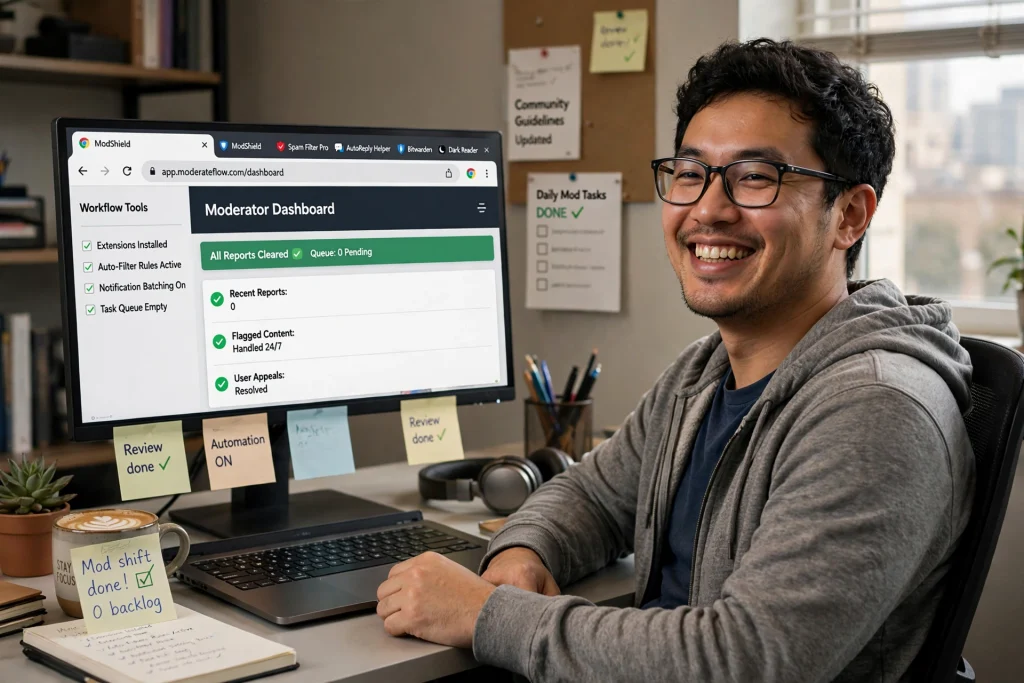
Monthly Routine – 10 minutes
- Open chrome://extensions → enable Developer Mode → check for updates.
- Review permissions: any new “all sites” request? Remove if not needed.
- Check last used: disable anything unused in 30 days.
- Run Safety Check: chrome://settings/safetyCheck.
- Export Text Blaze snippets and Notion logs to backup.
- Update your internal page: /community-safety-guide/ with any new spam pattern you saw.
Starter Pack (Install These 5 First)
- Moderator Toolbox for Reddit
- Bitwarden
- Text Blaze
- GoFullPage
- OneTab
If You Do Extra Investigation
- Wappalyzer
- ClearURLs / Privacy Badger
- Notion Web Clipper
- Clockify
My opinion: Your community does not need you to be online all day. It needs you to be consistent and safe. Good tools help you do less, but better.
Further reading from authoritative sources:
- Chrome Web Store Developer Program Policies – permission rules and privacy disclosure.
- Google Safety Check – how to run safety review for extensions and passwords.
- Electronic Frontier Foundation – Privacy Badger – tracker blocking explainer.
- Mozilla Extension Workshop – extension security best practices.
- Reddit Mod Help Center – official moderation documentation.
- NIST SP 800-63B – password guidelines (length, not complexity).
Writes about moderation workflows, safety, and tools that actually help. Moderates tech and learning communities. Focus: practical systems, not trends. All examples are based on common moderator challenges and personal testing in isolated profiles.
Disclaimer: This article is for informational purposes only. Extension features and permissions change. Always verify on the Chrome Web Store before installing. No affiliate links. No sponsored content. Opinion labels indicate subjective judgment.
Disclosure: I am not affiliated with any extension listed. My opinion is marked clearly. This post is based on practical moderation work and publicly available documentation.