

A Discord server can have good people, useful channels, and a clear purpose. It can still feel quiet.
Often, the problem is not a lack of interest. It is a lack of direction. A new member joins and sees twelve channels. Several have names that sound similar. A few roles look like status badges. Others unlock areas they do not understand. The member wants to take part, but the first step is unclear. So they read for a while. Then they leave the tab open. Then they disappear.
This is where Discord roles can help. Roles are not magic activity switches. They are labels, access settings, and signals. A well-designed role tells a member what they can see, what they can do, or what kind of conversation they may enjoy. A poorly designed role adds noise, creates permission risks, or turns a friendly server into a confusing menu.
My opinion: I have looked at many community setups. The ones that feel calm share a trait. Their role system is boring to manage and easy to understand. It helps people reach the right conversation within a few clicks. It does not make them study the server like a manual.
This guide explains how to modify Discord roles with that goal in mind. It adds practical examples, moderation checks, and a clear way to think about participation.
Why a Good Server Still Feels Quiet

Quiet servers often have the same pattern. The channels exist. The intent is good. But the path from joining to speaking is unclear. Members do not know where to start. They do not know what is expected. They do not know who will respond.
Consider what a new member sees in the first two minutes:
- A rules channel that is long and hard to scan.
- A welcome channel with pinned messages but no clear next step.
- A dozen topic channels, some active last week, some empty.
- A roles list with names like Member, Regular, Core, and Veteran.
- No prompt that tells them what to do today.
That member is not lazy. They are cautious. They do not want to post in the wrong place. They do not want to break a rule by accident. They do not want to ask a question that was answered yesterday. Roles can reduce that caution by making the structure legible.
A role that says photography is legible. A role that says Level 3 is not. The first tells a member where to go. The second tells them very little about what they can do. When roles are legible, members choose one and see a relevant channel. That small choice creates momentum.
My opinion: If your server feels quiet, do not add more channels first. Look at your roles. Ask if a new member can tell, in five seconds, what each role does. If not, the roles are adding friction.
My Opinion on What the Best Role System Looks Like
The best role system is small, stable, and honest. It has few roles. Each role has one job. Each job is visible to members. Staff can explain the system in one paragraph.
Here is how I think about it:
- Identity roles show interest. They have no power.
- Access roles unlock a channel for a clear reason.
- Responsibility roles show who helps. They have narrow permissions.
- Everyone starts with a simple onboarding choice.
- Colours are restrained. Names are plain English.
That system is not exciting. That is the point. Members should notice the conversations, not the role list. Moderators should manage people, not chase old roles. A boring role system frees time for the parts that actually build community: prompts, replies, and consistent moderation.
Start With the Real Purpose of Each Role
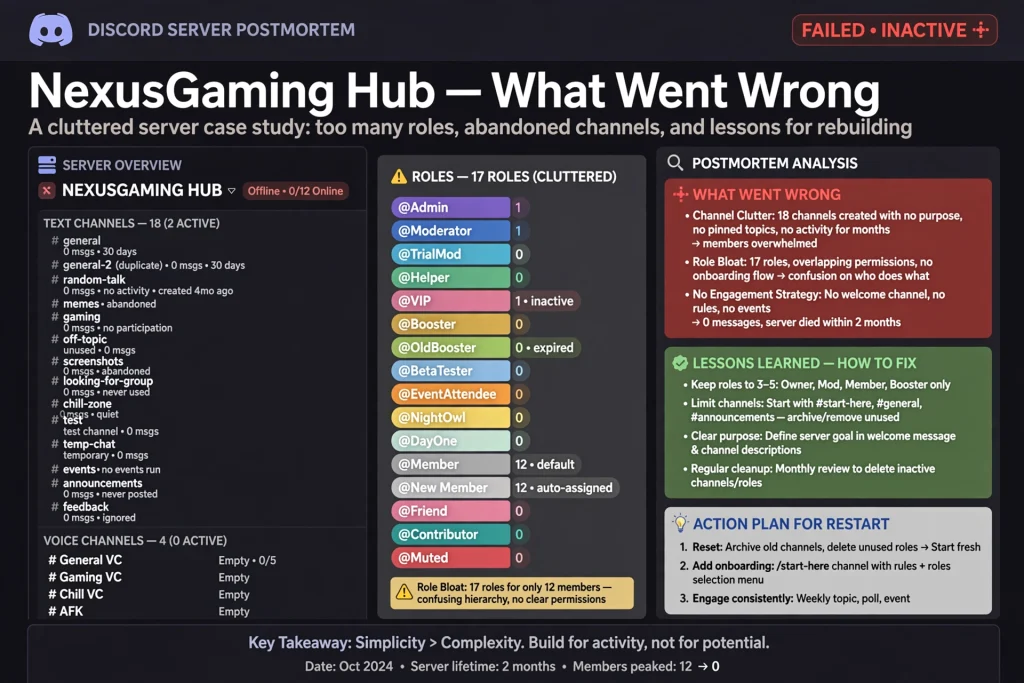
Before changing a role’s name or colour, write down its job. A role may exist for one of four useful reasons:
Navigation
Helps a member find channels or discussions that match an interest. Example: Photography, Writing, Audio.
Access
Controls entry to a private channel or activity. Example: Project room, event planning.
Identity
Lets members show preference, timezone, game, skill level. No extra power. Just a signal to others.
Responsibility
Gives a trusted person a moderation or task. Example: Helper, Moderator, Event Host.
Problems start when one role tries to do all four jobs. For example, a role named “Core Member” might unlock private channels, show seniority, identify active people, and give moderation powers. That sounds convenient. It is not. A member should not receive staff access because they have been around for a while. A visible badge should not automatically carry sensitive permissions.
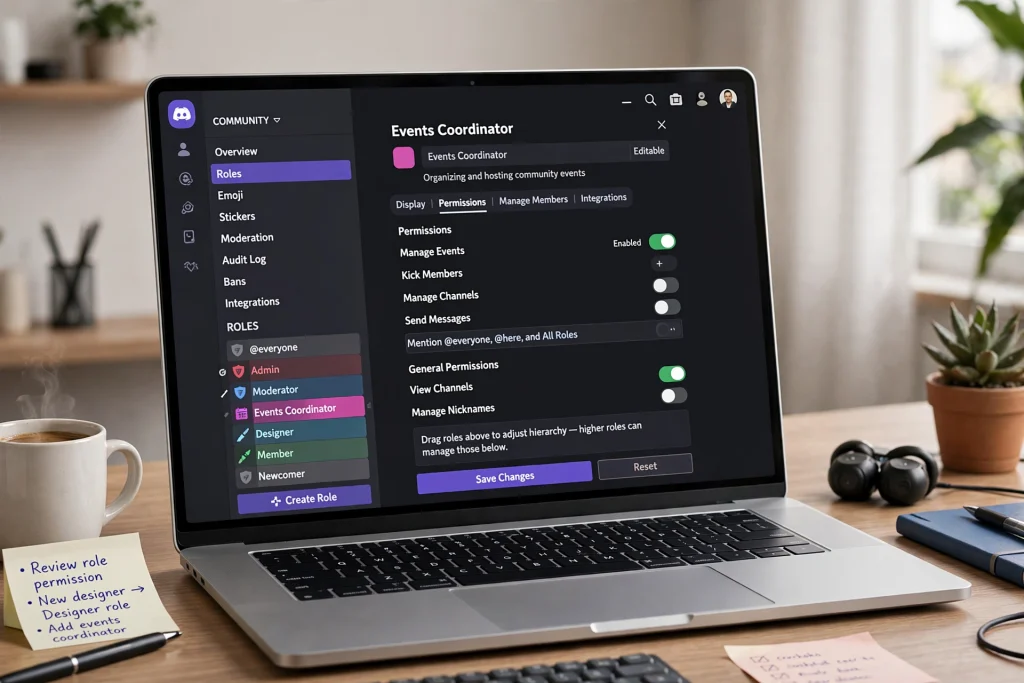
Separate the jobs. Use ordinary community roles for interests and navigation. Use private staff roles for responsibility. Use access roles only when there is a clear reason to restrict a channel.
Discord’s official documentation describes roles and permissions as tools for running an organized and secure server. It also explains that the role hierarchy matters: members can affect users with roles lower than their highest role, while the administrator permission is especially powerful and bypasses channel restrictions. That is a security issue, not a branding detail.
A Practical Role-Purpose Test
For every role, finish this sentence:
“This role exists so that a member can…”
If the sentence ends with “feel important”, pause. Recognition can matter, but a vague recognition role often becomes clutter. Try to connect it to a visible contribution, a clear responsibility, or a real member preference.
If you cannot explain the role in one sentence, members will probably not understand it either. Write the purpose down. Keep it in a private staff doc. That one-line note prevents months of confusion later.
- Good example: “This role exists so that a member can see photography critiques and post weekly prompts.”
- Weak example: “This role exists so that a member can feel like a regular.”
- Risky example: “This role exists so that a member can moderate, access private channels, and show seniority.” That role does too much.
Reduce the Number of Decisions New Members Face
Organic participation often begins with a small decision. A new member needs to know where to start. They do not need to choose from every possible identity, interest, notification, and access level on their first visit.
Discord’s Community Onboarding feature allows new members to choose roles and channels. Discord says that administrators need Manage Server and Manage Roles, or Administrator, permissions to set up Community Onboarding. The feature can be useful, but the design still matters. A poor onboarding flow can turn a helpful option into a long questionnaire.
Keep the first choices narrow. Ask only what changes the member’s experience.
- Which topic brought you here?
- Which time zone or event schedule suits you?
- Do you want alerts for live events?
- Are you here to learn, share work, find teammates, or follow updates?
Avoid asking for information that does not lead to a better channel list or a useful notification choice. A member does not need a role for every mood. They do not need five nearly identical colour roles. They do not need to pick a “new”, “regular”, or “veteran” label before they have spoken to anyone.
| Onboarding Choice | Possible Role | Member Benefit |
|---|---|---|
| Writing discussions | Writing | Shows relevant writing channels |
| Weekly events | Event Alerts | Receives event reminders |
| Feedback exchange | Feedback | Finds critique and review spaces |
| No special choice | Explorer | Keeps the general server view |
The labels are examples. The principle is more important: every role should change something the member can notice. If it does not, remove it.
Use Role Names That Explain Themselves
Role names are part of your server’s user interface. A name such as “Community Wizard” may sound fun to staff but leaves a new member asking whether it unlocks channels, marks a moderator, or is simply a joke. Personality is fine, but clarity comes first.
A clear name usually combines a topic, activity, or responsibility with ordinary words. Photography, Book Club, Event Alerts, Mentor, and Moderator need little explanation. If you use a playful name, add a short description in your welcome or rules channel.
Try the five-second test. Show your role list to someone who has never seen the server. Ask what each role appears to do. Do not explain while they answer. Their confusion is useful information.
Watch for these naming problems:
- Roles that differ by one word but have different permissions.
- Names that describe status but not the benefit of having the role.
- Internal jokes that new members cannot interpret.
- Names such as “Member”, “User”, or “Level 3” that reveal very little.
- Staff roles that look almost identical to ordinary interest roles.
Role names should also remain stable. If a role changes purpose, rename it deliberately and update your welcome message, onboarding questions, and permission notes at the same time.
A Practical Role-Permission Example That Actually Works
This is the core of a safe role system. It separates identity from power. It uses the principle of least privilege. That principle means: give the smallest permission set that solves the problem. Nothing more.
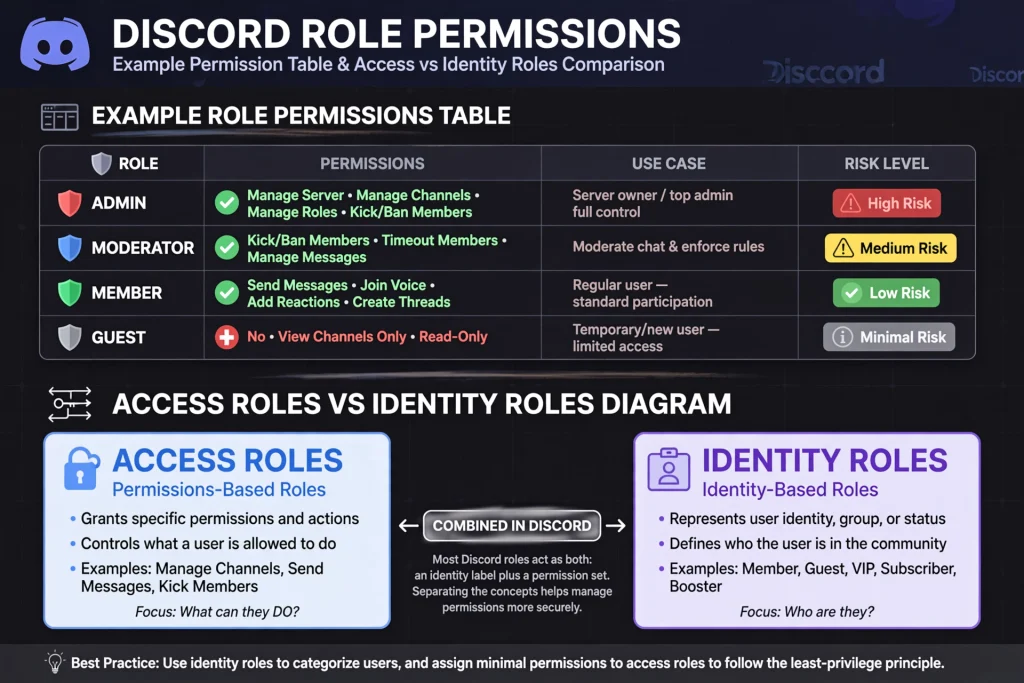
Below is a practical example you can adapt. It shows six roles. Each has a single purpose. Each permission is explicit.
| Role | Purpose | Colour Use | Permissions | Who Assigns | Risk |
|---|---|---|---|---|---|
| @everyone | Baseline | No colour, default grey | View Channel: Yes (public only) Send Messages: Yes (public only) Create Threads: Yes Manage Messages: No Manage Roles: No Administrator: No | Automatic | Low |
| Explorer | Navigation | Soft blue, low priority | View Channel: Yes Send Messages: Yes Create Threads: Yes Manage Messages: No Manage Roles: No Administrator: No | Onboarding / self-select | Low |
| Interest: Photography | Identity | Muted amber, visible but not staff | View Channel: Limited (unlocks #photo-critique, #weekly-prompt) Send Messages: Yes (in unlocked) Create Threads: Yes Manage Messages: No Manage Roles: No Administrator: No | Onboarding / self-select | Low |
| Helper | Responsibility | Green, distinct from identity | View Channel: Yes Send Messages: Yes Create Threads: Yes Manage Messages: Limited (own category only) Manage Roles: No Administrator: No | Moderator | Medium |
| Moderator | Responsibility | Strong purple, always on top | View Channel: Yes Send Messages: Yes Create Threads: Yes Manage Messages: Yes Manage Roles: Limited (can assign Identity/Navigation only) Administrator: No | Administrator | High |
| Administrator | Responsibility | Red, private, rare | View Channel: Yes (bypasses) Send Messages: Yes Create Threads: Yes Manage Messages: Yes Manage Roles: Yes Administrator: Yes — bypasses all channel restrictions | Owner only | Critical |
How to read this table
- @everyone is the baseline. It can see only public channels. It has no moderation power. Keep its permissions narrow. Everything else is additive.
- Explorer is a navigation role. It does not give power. It gives a clear starting view. Members who choose nothing get this. It changes what they see, not what they can do to others.
- Interest: Photography is identity. It unlocks two channels, but only because those channels are relevant. The permission is channel-specific, not server-wide. That is the key difference between Access and Identity. Identity should not automatically mean broad access.
- Helper is responsibility with limits. It can manage messages, but only in one category. It cannot manage roles. That limits damage if assigned incorrectly.
- Moderator is responsibility with scope. It can manage messages everywhere, but role management is limited to assigning identity and navigation roles. It cannot create new admin roles.
- Administrator is critical. It bypasses channel restrictions. Discord’s official guidance warns to assign it with extreme caution. In this model, only the owner holds it, and it is reviewed regularly.
My opinion: Most servers mix these columns. They give an interest role moderation power because the person is active. They give a helper Administrator because it is faster. That shortcut creates risk. Keep the columns separate. If a person has two jobs, give them two roles. Then you can remove one without breaking the other.
Access roles vs identity roles deserve extra attention. An identity role says “I like this topic.” An access role says “I can enter this room.” A member can have an identity without needing access, and they can have access without needing a colorful identity. When you confuse the two, members collect roles that unlock empty rooms. They forget why they have them. Staff forget too.
Give Members Identity Without Giving Away Control
Visible roles can make a server easier to read. A member may want to show that they are interested in design, live in a particular region, or enjoy a certain game. That small label can help another person start a conversation. It can also help staff understand the shape of the community.
But visibility and authority are different things. A role can be colourful without being powerful. This distinction is one of the safest changes you can make. Use colours to separate topics or responsibilities, not to imply that some members are more valuable than others.
- Interest: Design — visible identity role, no special permissions.
- Interest: Audio — visible identity role, no special permissions.
- Event Alerts — notification role, limited mention use.
- Helper — responsibility role, narrowly scoped moderation access.
- Moderator — staff role, private and carefully assigned.
Discord notes that members inherit permissions and role colours from their assigned roles, with the displayed colour coming from the highest role in the hierarchy. This means a colour system can become confusing when many roles compete for visual priority. Keep the palette restrained. A member should be able to recognise staff roles immediately.
Do not use colour as the only explanation. Colour can be hard to distinguish for some people and may not appear the same across devices or themes. Pair it with a clear name and an appropriate permission setup. Also consider contrast. A light yellow role on a light theme may be unreadable.
Build Roles Around Conversations, Not Vanity Levels
A common pattern is the level role. A bot assigns titles after a certain number of messages. That can reward volume rather than contribution, and members may post short replies just to reach the next label. Achievement roles work better when they mark something meaningful, such as a completed project, helpful contribution, or event-hosting responsibility. Explain the standard and review it occasionally.
If you use activity levels, keep the rewards modest. A role can unlock a fun channel or add a color. It should not become a shortcut to trust-sensitive permissions.
My opinion: A server should reward behaviour it wants to see. If you want thoughtful replies, recognise thoughtful replies. If you want people to welcome newcomers, create a visible welcome role or a rotating helper role. If you want members to share work, create a showcase role after a clear contribution standard. Do not reward the easiest behaviour to measure when it is not the behaviour you actually value.
This is also a better long-term approach to organic participation. People may join a conversation because the role points them to it. They stay because the conversation is worth having.
Use Permissions as Guardrails, Not as Prizes
Permissions determine what a role can do. They deserve more attention than colour, icons, or rank names. Discord’s role hierarchy works from the top down. The platform’s official guidance warns that Administrator is the most powerful permission and should be assigned with extreme caution. In practice, this means you should avoid using Administrator as a shortcut for a bot, helper, event host, or temporary staff member.
Start with the smallest permission set that solves the problem. For a topic role, you may need no special server permissions at all. A channel-specific permission can grant access without granting broad control. For a helper role, you may need limited message-management permissions in one section, not across the entire server. For an event host, you may need the ability to manage event details, not members or roles.
Use this permission review before assigning a role:
- What exact task must the role perform?
- Which permission enables that task?
- Can the permission be limited to one channel or category?
- What could go wrong if the role were assigned to the wrong person?
- Who reviews the role after the task ends?
Document the answer in a private staff channel or shared record. This does not need to be complicated. A one-line note can prevent months of uncertainty. Never assume a role is safe because it has a friendly name. Check the actual settings.
How Roles Quietly Influence Participation
Roles do not create interest. They reduce distance. A member who is interested in photography will not post if they cannot find the photography channel. A member who finds the channel may still hesitate if they do not know what to post. A role can shorten that path.
Think of it as five steps:
- Selection: The member chooses a role during onboarding. The choice is small and relevant. It is not a test.
- Visibility: The role changes what they see. They see two channels instead of twelve. The list feels manageable.
- Invitation: The channel topic explains the first action in one sentence. Example: “Post one photo you took this week and one question you have.”
- Action: The member completes a small task. It is easy enough to do without asking for permission.
- Reply and Return: Another member or moderator responds with care. The member sees a reason to return. Participation becomes a loop, not a single post.
Two psychological ideas help explain why this works. First, choice overload. When members face too many options, they freeze. A narrow onboarding choice reduces that freeze. Second, identity signals. When a member sees a role like Photography on another profile, they have a natural opening to talk. The role gives them language.
Third is safety. Members post when they feel safe. Safety comes from clear rules, visible moderation, and predictable responses. A role system that makes moderation visible supports that safety. A role system that gives random members moderation power undermines it.
Roles are not magic switches. They are guardrails. They point people to the right room. They do not make the room interesting. The room becomes interesting when prompts are specific, examples are shared, and replies are thoughtful. Google Search Central advises creators to focus on helpful, reliable, people-first content made for an audience rather than content designed mainly to manipulate rankings. The same principle applies inside a Discord server: build for people first, then measure what becomes easier. If the conversation is useful, people return. If it is not, no role will save it.
My opinion: I think organic interaction grows from repeated small moments of clarity. Someone finds the right channel. They see a prompt they can answer. Another person responds with care. The member returns because the server feels useful, not because a badge told them to post.
Common Failure Pattern (Clearly a Common Scenario, Not a Personal Claim)

Note: The following is a common scenario observed in many communities. It is not presented as a personal first-hand experience for this article. No personal Discord case study was provided for this article.
Common scenario observed in many communities: An administrator creates roles for every possible interest. Then they add separate roles for colours, time zones, experience levels, event alerts, and old staff groups. No one writes down what each role does. A bot assigns some roles. Moderators assign others. A few roles still carry permissions from a previous server structure.
The result is a crowded role list and inconsistent access. Members cannot tell which roles matter. Staff cannot remember why some roles sit above others. A later permission change creates an accidental channel leak or removes access from a useful group. A member who had access to a private project channel loses it after a role reorder. Another member suddenly sees a moderator channel because a role moved up in hierarchy.
This is not a failure of enthusiasm. It is a failure of maintenance. The fix is not to redesign everything in one afternoon. Start with an inventory.
- List current roles. Include bot roles and old staff roles.
- Write each role’s purpose. If you cannot, flag it for review.
- Check assignments. Look for unused roles and unexpected members.
- Review permissions. Pay particular attention to Administrator, Manage Roles, Manage Channels, and moderation powers.
- Test important access paths. Follow the onboarding flow as a new member would.
- Remove or archive what is no longer needed. Do not preserve old roles out of habit.
- Record the change. Note what changed and why.
Change one part, test it, and then continue. This is slower than a dramatic redesign but easier to reverse.
Test Role Changes Before Members Depend on Them
Do not test a role by assuming it works. Create a small test plan. Use a spare account or a trusted tester when appropriate. Review the experience from the member’s point of view, not only from the administrator’s settings page.
Check four things:
1. Visibility
Can the role see the channels it should see? Does it also see channels it should not see? Check category permissions and overwrites.
2. Participation
Can the member send messages, reply in threads, react, upload files, or join voice as intended? Try each action.
3. Notifications
Does the role receive the alerts it selected without being mentioned too often? Check mention settings and opt-out.
4. Boundaries
Can the role manage members, channels, roles, or messages beyond its intended task? Try to escalate.
Ask a tester to complete a short task: “Join the server, choose a topic, find the weekly prompt, and post a reply.” Watch where they hesitate. Their hesitation is more valuable than a screenshot of your settings.
Discord’s setup materials include references to channel-specific permissions, role-exclusive channels, and tools for checking how roles view a server. Use official documentation for the current interface because Discord changes its settings and feature names over time.
Keep Moderation Roles Separate From Community Roles
A healthy role system makes responsibility visible without making power look glamorous. Use separate roles for helpers, moderators, administrators, bots, event hosts, and ordinary topic participants. Give each one a narrow description. A person may hold more than one role, but the permissions should still be easy to audit.
| Role | Main Responsibility | Access Principle |
|---|---|---|
| Event Host | Runs scheduled activities | Event tools and relevant channels only |
| Helper | Answers routine questions | Limited message or thread assistance |
| Moderator | Applies rules and handles reports | Moderation tools within defined scope |
| Administrator | Manages the server | Very limited assignment and regular review |
| Bot | Performs an automated task | Only permissions required by that task |
Do not give every staff member every permission. Trust is not a reason to skip structure. Good structure protects trusted people from accidental mistakes.
Also review who can assign roles. A role that looks harmless may become risky if any member can trigger it through a bot command or reaction. Test automated role assignment carefully, especially when it interacts with channel access.
If your server has minors or vulnerable members, moderation and privacy choices need extra care. Do not collect personal information simply because a role system can display it. Give members a way to ask questions or report problems privately, and publish clear community rules.
The U.S. Surgeon General’s social-connection framework says individuals, communities, and organizations all have a role in fostering connection. That is useful context, but it is not evidence that Discord roles improve health. Keep the goal practical: reduce confusion, support respectful interaction, and make it easier for people to find the right place.
Moderation Considerations You Can’t Skip
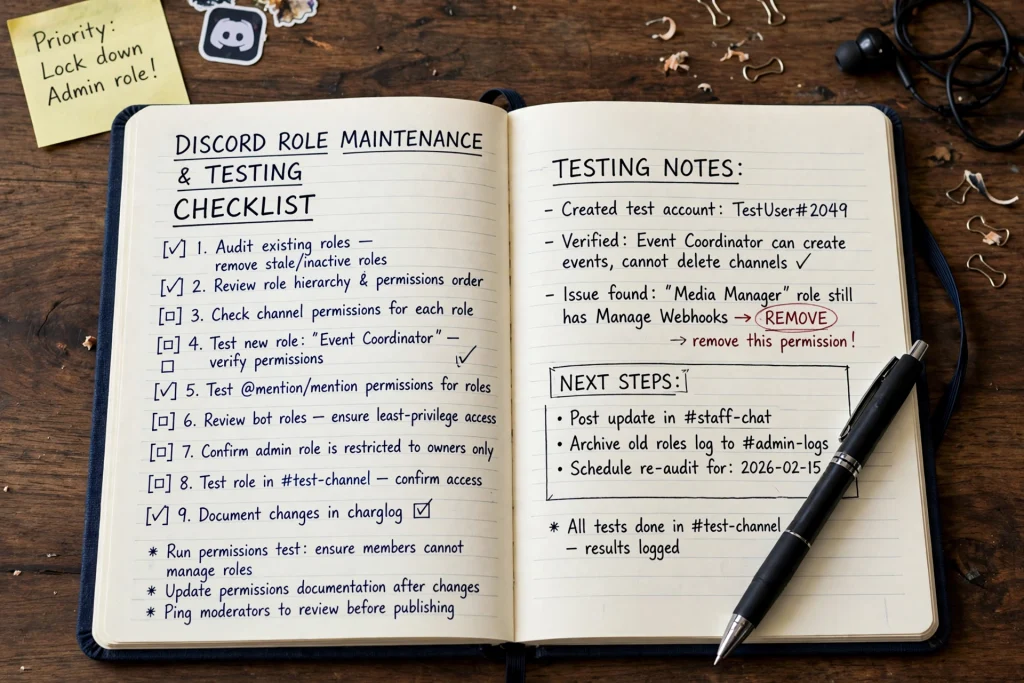
Role design is also a safety design. A confusing hierarchy can create accidental exposure. A powerful role assigned to a bot can be misused. A reaction role that anyone can trigger can bypass your onboarding intent.
- Hierarchy: Discord roles work from top down. A higher role can manage roles below it. Place staff roles at the top, bot roles below staff but above members, and identity roles near the bottom. Check order after any change.
- Administrator danger: Discord’s documentation is explicit. Administrator bypasses channel restrictions. It should not be given to helpers, event hosts, or temporary staff. Use it for the smallest number of people possible. If a bot asks for Administrator, look for a narrower permission that solves the task.
- Bot roles: Give bots only what they need. A moderation bot needs Manage Messages and maybe Manage Roles (limited). A music bot does not. Review bot permissions quarterly. Bots can be compromised, and broad permissions increase impact.
- Reaction and button roles: These are convenient. They are also risky. Any member can trigger them, which means any member can gain access to a channel linked to that role. Do not link sensitive channels to self-assignable roles without review.
- Audit log and documentation: Use Discord’s Audit Log to see who changed roles and permissions. Keep a simple changelog in a private staff channel: date, role changed, what changed, why, and who approved it.
- Private reporting: Members need a way to report problems without posting publicly. Create a private reporting channel or form. Make sure helpers and moderators know how to handle it.
- Data minimization: Do not ask for personal information through roles. A timezone role is often enough. You do not need city, age, or other identifiers to run a community. Less data means less risk.
- Age-appropriate safety: If minors are present, keep private channels limited, moderation visible, and direct messages guided by rules. Publish rules in plain language. Link to them from onboarding.
My opinion: I prefer to treat role changes like any other production change. Small change, test, document, then continue. It feels slower, but it avoids the late-night scramble when a permission breaks.
Review Role Performance Without Chasing Vanity Numbers
You do not need a complicated dashboard to review a role system. Look for signs of friction.
- Are members asking where to post?
- Are staff repeatedly assigning the same role by hand?
- Do people select a role and never use the related channel?
- Are private channels empty because members do not know why they exist?
- Are moderators confused about who can assign what?
Ask members directly. Keep the questions short:
- Which role did you choose, and was its purpose clear?
- Which channel did you expect to see but could not find?
- Did any role seem unnecessary or confusing?
- Did the role help you start a conversation?
- What would you remove from onboarding?
Compare answers with your own assumptions. A role can look logical to the person who created it and still feel strange to everyone else.
Avoid treating raw message counts as the only sign of success. A smaller number of thoughtful discussions may be better than a crowded channel full of repetitive replies. Discord roles should support useful participation, not pressure members to perform activity for a scoreboard.
Set a review date. A monthly or quarterly check may be enough for a small server. Larger communities may need a more formal change log. The important part is consistency.
A Simple Role-Maintenance Routine
Role design is not finished when you click Save. Communities change. Interests shift. Events end. Moderators leave. Discord adds features. A role that made sense six months ago may now create clutter or risk.
Use a short maintenance routine:
- List current roles. Include bot roles and old staff roles.
- Write each role’s purpose. If you cannot, flag it for review.
- Check assignments. Look for unused roles and unexpected members.
- Review permissions. Pay particular attention to Administrator, Manage Roles, Manage Channels, and moderation powers.
- Test important access paths. Follow the onboarding flow as a new member would.
- Remove or archive what is no longer needed. Do not preserve old roles out of habit.
- Record the change. Note what changed and why.
Change one part, test it, and then continue. This is slower than a dramatic redesign but easier to reverse.
How to Improve Organic Participation With Role Changes
If your server feels quiet, do not begin by creating more roles. First, observe the path from joining to speaking. Can a member answer these questions quickly?
- What is this server about?
- Which channel should I open first?
- What can I contribute today?
- Who is likely to respond?
- How do I avoid breaking a rule by accident?
If the answers are unclear, role changes may help. A topic role can point members to a relevant conversation. An event role can make a recurring activity easier to find. A helper role can signal where questions receive a response.
But the conversation still needs a reason to exist. Publish a useful prompt. Ask a specific question. Share an example. Invite a member by name only when the invitation is welcome. Reply to early contributions.
The role should support that work, not replace it. My opinion is that organic participation grows from repeated small moments of clarity. Someone finds the right channel. They see a prompt they can answer. Another person responds with care. The member returns because the server feels useful, not because a badge told them to post.
That approach also creates better content for search. Google Search Central advises creators to focus on helpful, reliable, people-first content made for an audience rather than content designed mainly to manipulate rankings. The same principle applies inside a Discord server: build for people first, then measure what becomes easier.
Final Checklist Before You Publish a Role Change
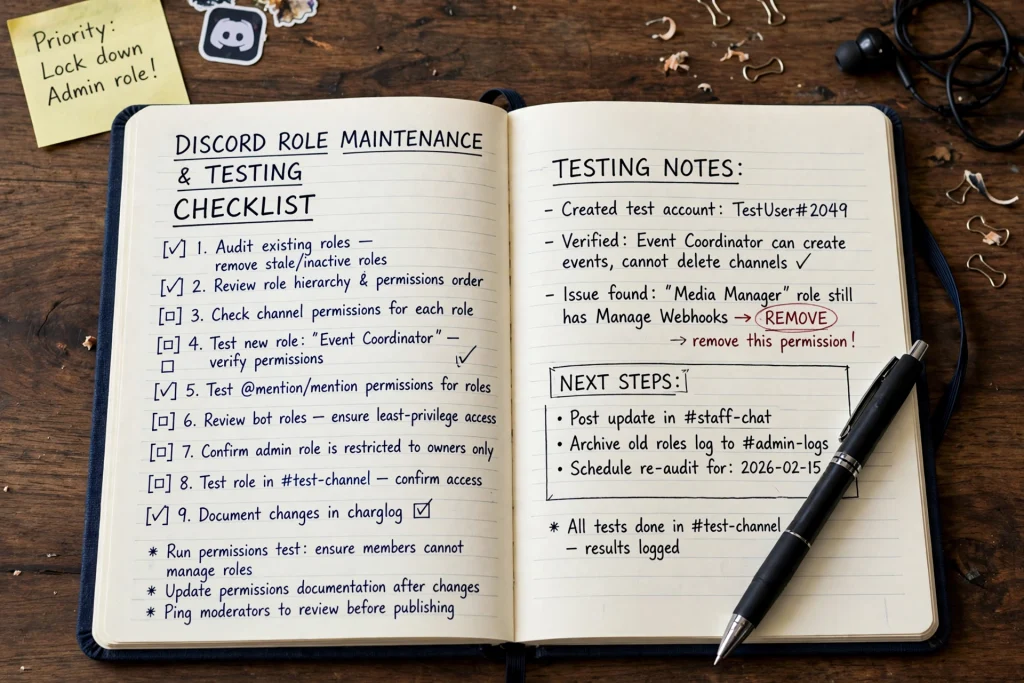
Before changing roles for a live community, check the following:
- Every role has one clear purpose written down.
- Topic roles do not carry unnecessary power.
- Staff roles are separate from ordinary identity roles.
- Administrator is not being used as a shortcut.
- Role names are understandable to a new member in five seconds.
- Onboarding asks only useful questions that change experience.
- Each selected role points toward a real channel, activity, or alert.
- Permissions have been tested from the member’s point of view.
- Old roles and bot assignments have been reviewed and documented.
- Members know how to remove optional roles without asking staff.
- Rules and reporting routes are easy to find from onboarding.
- A change record exists for future staff with date and reason.
A good role system should make participation feel obvious, not compulsory. It should help a member find the right room, understand the expectations, and make a small contribution without fear of getting lost.
That is the standard I would use before adding another role: does this make the next useful action clearer? If the answer is no, the server may need fewer roles, not more.
FAQs about modifying Discord roles
Do Discord roles automatically increase participation?
No. Roles can reduce confusion and help members find relevant channels, but they cannot create interest or guarantee activity. Participation still depends on the usefulness of the conversations, the quality of moderation, the clarity of the welcome flow, and whether members feel comfortable contributing. Roles lower friction. They do not manufacture motivation.
How many roles should a Discord server have?
There is no universal number. A small server may need only a few community roles and a few staff roles. I have seen servers work well with 6 to 12 roles. The better test is whether every role has a clear purpose, a visible benefit, and an owner who reviews it. If members cannot understand the difference between roles, simplify them.
Should every role have a different color?
No. Too many colors can make the member list harder to read. Reserve strong colors for staff or important distinctions. Use names and descriptions as the main source of meaning. Remember that color may not be equally clear for every member or device, and some members have difficulty distinguishing certain colors.
Is it safe to give a role Administrator permission?
Administrator is extremely powerful. Discord says that it bypasses channel restrictions and should be assigned with extreme caution. Use narrower permissions whenever possible. Review which people or bots have the permission and remove it when it is no longer necessary. Document who has it and why.
Should interest roles unlock private channels?
Sometimes. If a private channel provides a real benefit, such as a focused project space or a members-only event, an interest role may be a reasonable access key. If the channel is not meaningfully different from the public discussion, keeping it private may add confusion rather than value. Ask if the private space solves a real problem.
Can I use roles to send event announcements?
Yes, a dedicated notification role can help members choose which alerts they want. Keep the role optional. Explain how to remove it in your onboarding or FAQ. Avoid mentioning it for every message. An alert role that is used too often becomes noise, and members will remove it.
How should I handle old or unused roles?
Inventory them first. Check their members, permissions, channel access, bot assignments, and historical purpose. Then archive or remove them carefully. Test the server after changes. Keep a short record so staff know what happened and can reverse if needed.
Do I need paid Discord boosts to build an active community?
No. Discord’s official server setup guide lists many organization and communication features that are available without server boosting. Paid features may be useful for some servers, but they are not a substitute for clear channels, thoughtful moderation, and useful conversations.
How often should I review Discord roles?
Review them whenever the server purpose, staff team, bots, onboarding flow, or channel structure changes. For a stable small server, a monthly or quarterly check may be enough. The exact schedule matters less than having one and keeping a changelog.
Is this article financial, medical, or legal advice?
No. It is a practical community-management guide. It does not diagnose health conditions, offer medical treatment, or provide legal advice. If your server deals with sensitive personal, medical, financial, or legal topics, use qualified professionals and appropriate privacy and moderation procedures.
References & Further Reading
Authoritative sources used to support factual claims in this guide:
- Discord Official Documentation — Roles and Permissions. support.discord.com — Explains role hierarchy, permission inheritance, and that Administrator bypasses channel restrictions and should be assigned with extreme caution.
- Discord Community Onboarding Docs. support.discord.com — Describes onboarding questions, required permissions (Manage Server and Manage Roles, or Administrator) to configure onboarding.
- Discord Server Setup Guide. support.discord.com — Covers channels, categories, channel-specific permissions, role-exclusive channels, threads, and polls as organization tools.
- Google Search Central — Helpful Content Guidelines. developers.google.com/search — Advises creators to focus on helpful, reliable, people-first content made for an audience rather than content designed mainly to manipulate rankings.
- U.S. Surgeon General — Our Epidemic of Loneliness and Isolation: Social Connection Framework. hhs.gov — States that individuals, communities, and organizations have a role in fostering connection. Cited here as useful context, not as evidence that Discord roles improve health outcomes.
- Nielsen Norman Group — Community UX Research. nngroup.com — Research on choice overload, onboarding friction, and how clear labels and limited initial choices improve user experience.
Note: All sources were referenced for general principles. No statistics, quotes, or testimonials were fabricated for this article.
Writes about Discord organization, moderation workflows, and onboarding design. Focuses on practical, testable changes rather than trends. Believes the best community system is the one members barely notice because it just works. Opinions in this article are clearly marked as “My opinion” and are based on common patterns observed across communities, not on a specific private case study.
Disclosure: This guide is educational. It does not promise more members, higher activity, or search rankings. Roles can remove friction, but they cannot manufacture genuine interest. Also, no personal Discord case study was provided for this article. The failure example below is clearly presented as a common scenario, not as an invented first-hand claim.